> ## Documentation Index
> Fetch the complete documentation index at: https://docs-dev-chore-teams-api-autoupdate.mintlify.site/llms.txt
> Use this file to discover all available pages before exploring further.

# Coffre-fort

> Décrit comment utiliser le coffre-fort de formulaires pour les actions.

Le coffre-fort vous permet de stocker de manière sécurisée des secrets ou des paramètres courants (par exemple : clés API, jetons d’accès, jetons d’actualisation) pour authentifier les demandes auprès de services externes ou des intégrations en tant que connexions de coffre-fort.

<Callout icon="file-lines" color="#0EA5E9" iconType="regular">
  * Certaines connexions exigent que l’utilisateur fournisse des informations d’identification (par exemple, dans le cas d’une connexion Auth0 avec une application machine-machine (M-M), un jeton d’accès est généré avec un délai d’expiration et un jeton d’actualisation). La connexion stocke les deux jetons et génère un nouveau jeton d’accès avant son expiration.
  * Certains services externes requièrent des permissions pour générer des identifiants d’API. Si vous modifiez les permissions, mettez à jour la connexion à ces services pour éviter les problèmes de connexion.
  * Une fois la connexion ajoutée, vous pouvez l’utiliser dans vos flux. Toute mise à jour d’une connexion existante se propage automatiquement.
</Callout>

## Créer et modifier des connexions au coffre-fort

Créez et modifiez des connexions au coffre-fort depuis la page correspondante ou l’éditeur de flux lorsqu’une action nécessite des identifiants.

### Créer des connexions au coffre-fort depuis la page correspondante

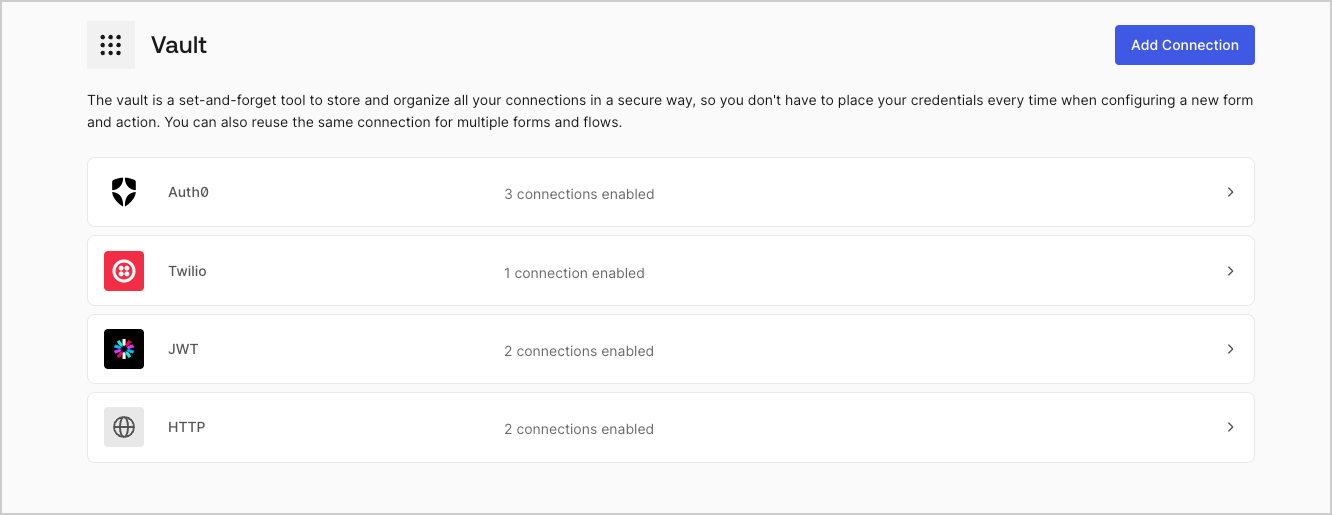
Ajoutez une connexion au coffre-fort depuis la page Coffre-fort en procédant comme suit :

1. Ouvrez l’éditeur de formulaires en sélectionnant **Auth0 Dashboard > Actions > Forms (Formulaires).**

2. En haut à gauche de l’écran, sélectionnez **{"{tenantName}"} > Vault (Coffre-fort)** pour ouvrir la page Vault.
   <Frame>
     <img src="https://mintcdn.com/docs-dev-chore-teams-api-autoupdate/LbFbDQQsCpfyY2yt/docs/images/fr-ca/cdy7uua7fh8z/1sPNPKO6nuEDCuiYGRWSur/d85dc616170eaf2d7d5f321750863ccf/vault-connections-example.png?fit=max&auto=format&n=LbFbDQQsCpfyY2yt&q=85&s=462d80c1da78c9212c0aab0d12cfe38d" alt="Dashboard > Forms > Vault" data-og-width="1332" width="1332" data-og-height="515" height="515" data-path="docs/images/fr-ca/cdy7uua7fh8z/1sPNPKO6nuEDCuiYGRWSur/d85dc616170eaf2d7d5f321750863ccf/vault-connections-example.png" data-optimize="true" data-opv="3" srcset="https://mintcdn.com/docs-dev-chore-teams-api-autoupdate/LbFbDQQsCpfyY2yt/docs/images/fr-ca/cdy7uua7fh8z/1sPNPKO6nuEDCuiYGRWSur/d85dc616170eaf2d7d5f321750863ccf/vault-connections-example.png?w=280&fit=max&auto=format&n=LbFbDQQsCpfyY2yt&q=85&s=7ea49e502edcfc75e2aa6f9c8a414364 280w, https://mintcdn.com/docs-dev-chore-teams-api-autoupdate/LbFbDQQsCpfyY2yt/docs/images/fr-ca/cdy7uua7fh8z/1sPNPKO6nuEDCuiYGRWSur/d85dc616170eaf2d7d5f321750863ccf/vault-connections-example.png?w=560&fit=max&auto=format&n=LbFbDQQsCpfyY2yt&q=85&s=9a1e1d0ccc8e66d6304ec105d4999075 560w, https://mintcdn.com/docs-dev-chore-teams-api-autoupdate/LbFbDQQsCpfyY2yt/docs/images/fr-ca/cdy7uua7fh8z/1sPNPKO6nuEDCuiYGRWSur/d85dc616170eaf2d7d5f321750863ccf/vault-connections-example.png?w=840&fit=max&auto=format&n=LbFbDQQsCpfyY2yt&q=85&s=28d0d8f37c9d5e76eb0dc06176f81ef2 840w, https://mintcdn.com/docs-dev-chore-teams-api-autoupdate/LbFbDQQsCpfyY2yt/docs/images/fr-ca/cdy7uua7fh8z/1sPNPKO6nuEDCuiYGRWSur/d85dc616170eaf2d7d5f321750863ccf/vault-connections-example.png?w=1100&fit=max&auto=format&n=LbFbDQQsCpfyY2yt&q=85&s=d6067ab62bf8dd0755e36da3fc500aec 1100w, https://mintcdn.com/docs-dev-chore-teams-api-autoupdate/LbFbDQQsCpfyY2yt/docs/images/fr-ca/cdy7uua7fh8z/1sPNPKO6nuEDCuiYGRWSur/d85dc616170eaf2d7d5f321750863ccf/vault-connections-example.png?w=1650&fit=max&auto=format&n=LbFbDQQsCpfyY2yt&q=85&s=b52ff45f7d6f88b5755aa3caf442c894 1650w, https://mintcdn.com/docs-dev-chore-teams-api-autoupdate/LbFbDQQsCpfyY2yt/docs/images/fr-ca/cdy7uua7fh8z/1sPNPKO6nuEDCuiYGRWSur/d85dc616170eaf2d7d5f321750863ccf/vault-connections-example.png?w=2500&fit=max&auto=format&n=LbFbDQQsCpfyY2yt&q=85&s=b5ebe63c190f3f6b3e18abaceae3c001 2500w" />
   </Frame>

3. Sélectionnez **Add Vault Connection (Ajouter une connexion au coffre-fort)**.

4. Sélectionnez l’action désirée, puis **Continue (Continuer)**.

5. Ajoutez un **Connection name (Nom de connexion)** au coffre-fort et sélectionnez **Continue (Continuer)**.

6. Saisissez les identifiants.
   Si vous n’avez pas d’identifiants précis, vous pouvez sélectionner **Create an empty connection (Créer une connexion vide)** et ajouter les identifiants plus tard. Les connexions vides affichent une icône orange qui indiquent l’absence d’identifiants.

7. Sélectionnez **Add Vault Connection (Ajouter une connexion au coffre-fort)**.

### Créer des connexions au coffre-fort depuis l’éditeur de flux

Ajoutez une connexion au coffre-fort à partir d’une action de flux, par exemple, Twilio, en procédant comme suit :

1. Ouvrez l’éditeur de flux en sélectionnant **Auth0 Dashboard > Actions > Forms (Formulaires) > Flows (Flux)**

2. Sélectionnez un flux et ajoutez une action **Send SMS with Twilio (Envoyer un SMS avec Twilio)**.

3. Dans le paramètre **Vault connection (Connexion au coffre-fort)** de l’action, sélectionnez l’icône **+**.

   <Frame>
     <img src="https://mintcdn.com/docs-dev-chore-teams-api-autoupdate/WBZCVO0k9aDX0fKn/docs/images/fr-ca/cdy7uua7fh8z/1AsaznhRKxm5LZxPlcbfUw/10e5a8af700aab909f5b03fcd266da7e/twilio-vault-connection.png?fit=max&auto=format&n=WBZCVO0k9aDX0fKn&q=85&s=6552437f765af51c2c59e928bb12bb8d" alt="Dashboard > Forms > Vault " data-og-width="1104" width="1104" data-og-height="191" height="191" data-path="docs/images/fr-ca/cdy7uua7fh8z/1AsaznhRKxm5LZxPlcbfUw/10e5a8af700aab909f5b03fcd266da7e/twilio-vault-connection.png" data-optimize="true" data-opv="3" srcset="https://mintcdn.com/docs-dev-chore-teams-api-autoupdate/WBZCVO0k9aDX0fKn/docs/images/fr-ca/cdy7uua7fh8z/1AsaznhRKxm5LZxPlcbfUw/10e5a8af700aab909f5b03fcd266da7e/twilio-vault-connection.png?w=280&fit=max&auto=format&n=WBZCVO0k9aDX0fKn&q=85&s=32c885d8dd2266cf2c5e45f4d734810a 280w, https://mintcdn.com/docs-dev-chore-teams-api-autoupdate/WBZCVO0k9aDX0fKn/docs/images/fr-ca/cdy7uua7fh8z/1AsaznhRKxm5LZxPlcbfUw/10e5a8af700aab909f5b03fcd266da7e/twilio-vault-connection.png?w=560&fit=max&auto=format&n=WBZCVO0k9aDX0fKn&q=85&s=fa42c7b1929fcf5e0c555ce5ccc5bb36 560w, https://mintcdn.com/docs-dev-chore-teams-api-autoupdate/WBZCVO0k9aDX0fKn/docs/images/fr-ca/cdy7uua7fh8z/1AsaznhRKxm5LZxPlcbfUw/10e5a8af700aab909f5b03fcd266da7e/twilio-vault-connection.png?w=840&fit=max&auto=format&n=WBZCVO0k9aDX0fKn&q=85&s=98efe9546dd5c0d823ac1002bfab04c1 840w, https://mintcdn.com/docs-dev-chore-teams-api-autoupdate/WBZCVO0k9aDX0fKn/docs/images/fr-ca/cdy7uua7fh8z/1AsaznhRKxm5LZxPlcbfUw/10e5a8af700aab909f5b03fcd266da7e/twilio-vault-connection.png?w=1100&fit=max&auto=format&n=WBZCVO0k9aDX0fKn&q=85&s=710643bf2b6f486e05fed283a6ad9f6a 1100w, https://mintcdn.com/docs-dev-chore-teams-api-autoupdate/WBZCVO0k9aDX0fKn/docs/images/fr-ca/cdy7uua7fh8z/1AsaznhRKxm5LZxPlcbfUw/10e5a8af700aab909f5b03fcd266da7e/twilio-vault-connection.png?w=1650&fit=max&auto=format&n=WBZCVO0k9aDX0fKn&q=85&s=e15c08da3fc7554334047d339569bde2 1650w, https://mintcdn.com/docs-dev-chore-teams-api-autoupdate/WBZCVO0k9aDX0fKn/docs/images/fr-ca/cdy7uua7fh8z/1AsaznhRKxm5LZxPlcbfUw/10e5a8af700aab909f5b03fcd266da7e/twilio-vault-connection.png?w=2500&fit=max&auto=format&n=WBZCVO0k9aDX0fKn&q=85&s=63be63cb3350a5c04f96e4f188c6c307 2500w" />
   </Frame>

4. Ajoutez un **Connection name (Nom de connexion)** au coffre-fort et sélectionnez **Continue (Continuer)**.

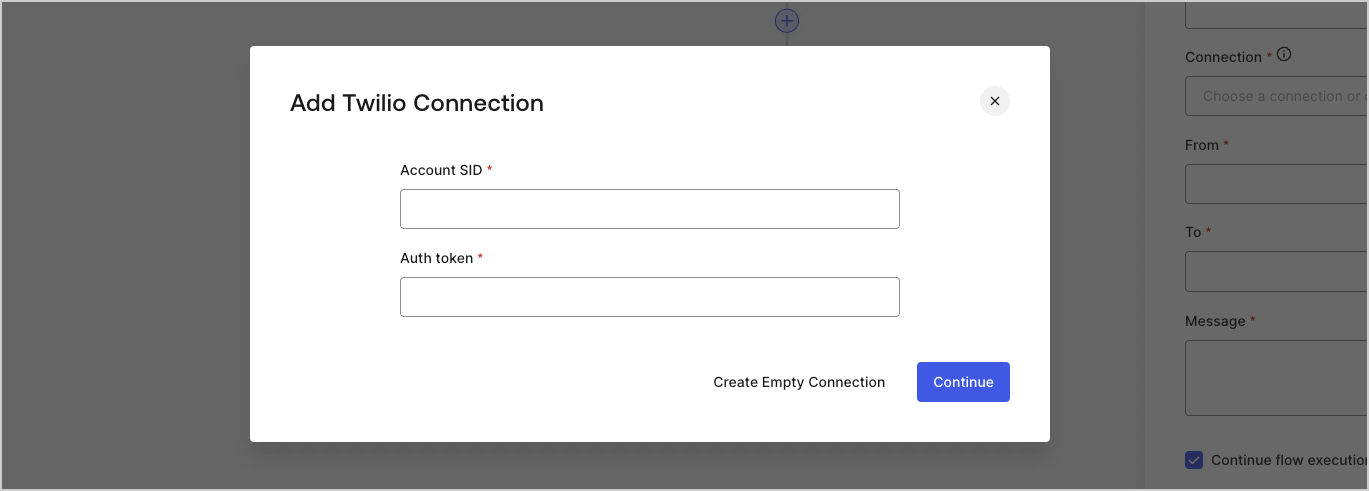
5. Saisissez les identifiants.
   Si vous n’avez pas d’identifiants précis, vous pouvez sélectionner **Create an empty connection (Créer une connexion vide)** et ajouter les identifiants plus tard. Les connexions vides affichent une icône orange qui indiquent l’absence d’identifiants.
   <Frame>
     <img src="https://mintcdn.com/docs-dev-chore-teams-api-autoupdate/dz2-EEWtyIWjQgOY/docs/images/fr-ca/cdy7uua7fh8z/yobXanutPRCO3FWek8cOk/bc29e39fb8593cff35e2738234bfe6fe/twilio-vault-settings.png?fit=max&auto=format&n=dz2-EEWtyIWjQgOY&q=85&s=2f70248f2b4250508a635e54cca5502f" alt="Dashboard > Forms > Vault > Twilio connection settings" data-og-width="1369" width="1369" data-og-height="491" height="491" data-path="docs/images/fr-ca/cdy7uua7fh8z/yobXanutPRCO3FWek8cOk/bc29e39fb8593cff35e2738234bfe6fe/twilio-vault-settings.png" data-optimize="true" data-opv="3" srcset="https://mintcdn.com/docs-dev-chore-teams-api-autoupdate/dz2-EEWtyIWjQgOY/docs/images/fr-ca/cdy7uua7fh8z/yobXanutPRCO3FWek8cOk/bc29e39fb8593cff35e2738234bfe6fe/twilio-vault-settings.png?w=280&fit=max&auto=format&n=dz2-EEWtyIWjQgOY&q=85&s=c426b55b9502a20598a562cda7e562e7 280w, https://mintcdn.com/docs-dev-chore-teams-api-autoupdate/dz2-EEWtyIWjQgOY/docs/images/fr-ca/cdy7uua7fh8z/yobXanutPRCO3FWek8cOk/bc29e39fb8593cff35e2738234bfe6fe/twilio-vault-settings.png?w=560&fit=max&auto=format&n=dz2-EEWtyIWjQgOY&q=85&s=dc37b1de7c4761991fb10ebc7228c57f 560w, https://mintcdn.com/docs-dev-chore-teams-api-autoupdate/dz2-EEWtyIWjQgOY/docs/images/fr-ca/cdy7uua7fh8z/yobXanutPRCO3FWek8cOk/bc29e39fb8593cff35e2738234bfe6fe/twilio-vault-settings.png?w=840&fit=max&auto=format&n=dz2-EEWtyIWjQgOY&q=85&s=1e9b098a77ad4a76763487ad643e457a 840w, https://mintcdn.com/docs-dev-chore-teams-api-autoupdate/dz2-EEWtyIWjQgOY/docs/images/fr-ca/cdy7uua7fh8z/yobXanutPRCO3FWek8cOk/bc29e39fb8593cff35e2738234bfe6fe/twilio-vault-settings.png?w=1100&fit=max&auto=format&n=dz2-EEWtyIWjQgOY&q=85&s=d864a5dd95731ab30d937356f0167dbd 1100w, https://mintcdn.com/docs-dev-chore-teams-api-autoupdate/dz2-EEWtyIWjQgOY/docs/images/fr-ca/cdy7uua7fh8z/yobXanutPRCO3FWek8cOk/bc29e39fb8593cff35e2738234bfe6fe/twilio-vault-settings.png?w=1650&fit=max&auto=format&n=dz2-EEWtyIWjQgOY&q=85&s=e3110664361a0211508399a694937193 1650w, https://mintcdn.com/docs-dev-chore-teams-api-autoupdate/dz2-EEWtyIWjQgOY/docs/images/fr-ca/cdy7uua7fh8z/yobXanutPRCO3FWek8cOk/bc29e39fb8593cff35e2738234bfe6fe/twilio-vault-settings.png?w=2500&fit=max&auto=format&n=dz2-EEWtyIWjQgOY&q=85&s=5ab29d17db22e7c555fb1659dc89fb97 2500w" />
   </Frame>

6. Sélectionnez **Add Vault Connection (Ajouter une connexion au coffre-fort)**.
